Related products on product pages
Display relevant product recommendations while customers browse a product. You can choose which products to recommend and customize the widget to match your store.
To display the widget, add the Crossup app block to your product template, verify the installation in Crossup, and activate the feature.
Open the widget settings
- In your Shopify admin, open Apps > Crossup.
- Select Related products.
- Under Related products on product pages, click Set up.
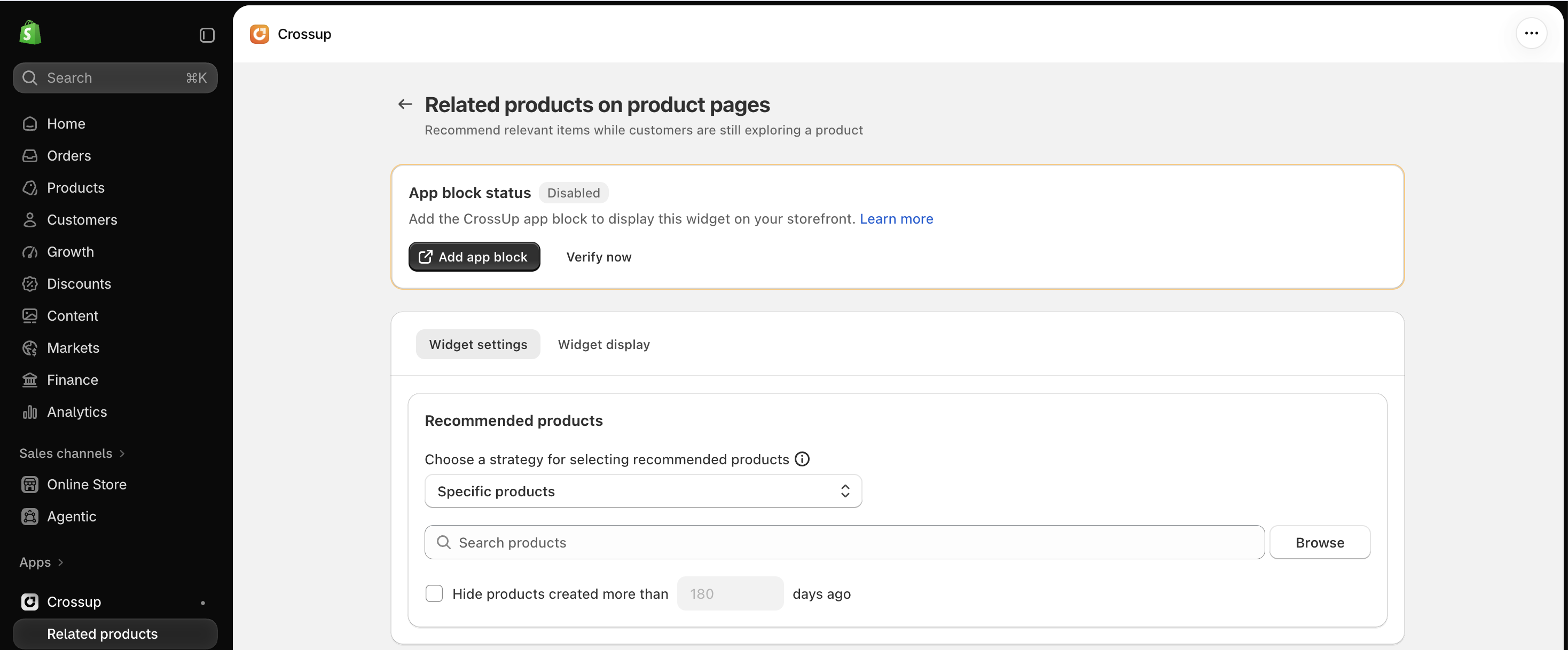
Add and verify the app block
If App block status shows Disabled:
- Click Add app block to open the Shopify theme editor.
- Check that you are editing the theme and product template where you want the widget to appear.
- Locate the CrossUp app block. If it has not been added, use Add block > Apps in a section that supports app blocks and select the Crossup widget.
- Move the block to your preferred position on the product page.
- Click Save in the theme editor.
- Return to the widget settings in Crossup and click Verify now.
Verification checks the app block installation. You also need to configure the recommendations and turn on the widget to display it to customers.
The app block belongs to the product template where you add it. If your products use different templates, add the block to each template where you want recommendations to appear.
Choose the recommended products
In Widget settings, use the dropdown under Recommended products to choose a recommendation strategy.
| Strategy | Recommendation source |
|---|---|
| Bought together in the same order | Products purchased together in the same order. |
| Products are in the same collection | Products that share a collection with the product being viewed. |
| Products are in the same category | Products that share its category. |
| Products have the same tag | Products that share its tags. |
| Products have the same type | Products that share its product type. |
| Specific collection | Products from a collection you select. |
| Specific products | Individual products you select. |
For Specific products, use Search products or Browse to select the items to recommend. Drag the selected products to change their order, or click the remove icon to remove an item.
For Specific collection, select the collection you want to use.
To exclude older products, check Hide products created more than … days ago and enter the number of days. This filter uses the product creation date.
For an initial display check, Specific products lets you choose the exact recommendations to test. Select products that are available on your Online Store.
Customize the widget
Open Widget display to adjust the content and appearance.
| Setting | What you can change |
|---|---|
| Widget title | The heading shown above the recommendations. |
| Widget description | Supporting text below the title. Leave it blank to hide the description. |
| Style | Button, discount, progress bar, and countdown timer colors, plus the border radius. |
| Buy Now button | Turn the Buy Now button on or off. |
| Progress bar | Turn the bar on or off, edit the progress message, and adjust the demand indicator percentage. |
| Countdown timer | Turn the countdown timer next to the widget title on or off. |
Use Horizontal and Vertical in the preview to inspect both layouts. The actual widget layout can vary with the size of the section where you place the app block.
Use Reset to default if you want to restore the default display settings.
Activate and check the widget
- After verifying the app block, turn on the switch at the top of the settings page.
- Confirm that the status reads This setting is activated.
- If a save prompt appears after your changes, save them before leaving the page.
- Open a product page on your storefront that uses the template containing the Crossup app block.
- Check that the widget appears in the expected position and displays your recommendations.
Review the widget on both desktop and mobile to check its layout and spacing.
If the widget does not appear
Check that:
- The Crossup app block is present and visible in the product template used by the product you are viewing.
- You saved the theme editor changes and are viewing the same theme you edited.
- You returned to Crossup and clicked Verify now after adding the block.
- The feature status reads This setting is activated.
- Your selected strategy has matching products available on the Online Store.
- The product age filter is not excluding the products you expect to recommend.
If you change your theme, add the Crossup app block to the new theme and verify it again.
Need help?
Contact [email protected] with your store URL, the affected product page URL, and a screenshot of your widget settings. Our team will help you check the setup.